Photoshop Watermark Methods: What Breaks in Real Work
You already know Photoshop can put text or a logo on a photo. The real question is which approach still behaves when you do it every week, when orientation flips, or when a folder has three hundred files.
The usual options are full manual placement, a brush stamp, recorded actions, or a dedicated watermark tool. Watermark 3 sits in that last group on Windows and Mac. The sections below walk through each path and where it tends to snap.
Photoshop Watermark Methods at a Glance
Before choosing a workflow, it helps to separate one-off edits from repeatable production work.
- Fully manual watermarking gives you maximum control on a single image.
- Brush-based watermarking can be fast for simple marks, but it is limited for logos and precise scaling.
- Photoshop actions help automate repeated steps, but they can break when source images vary too much.
- A dedicated tool is usually the most practical option when you need repeatable placement, batch processing, or easy switching between text and logo watermarks.
Option 1, Add a Photoshop Watermark Completely Manually
The fully manual method is the classic Photoshop workflow. You place a text layer or logo file, resize it, lower the opacity, and move it into position for each image.
This works well when you are preparing a hero image, a single client preview, or a social graphic where you want to judge placement by eye. It also gives you the most control over font choice, spacing, blending, and how visible the mark should be against the background.
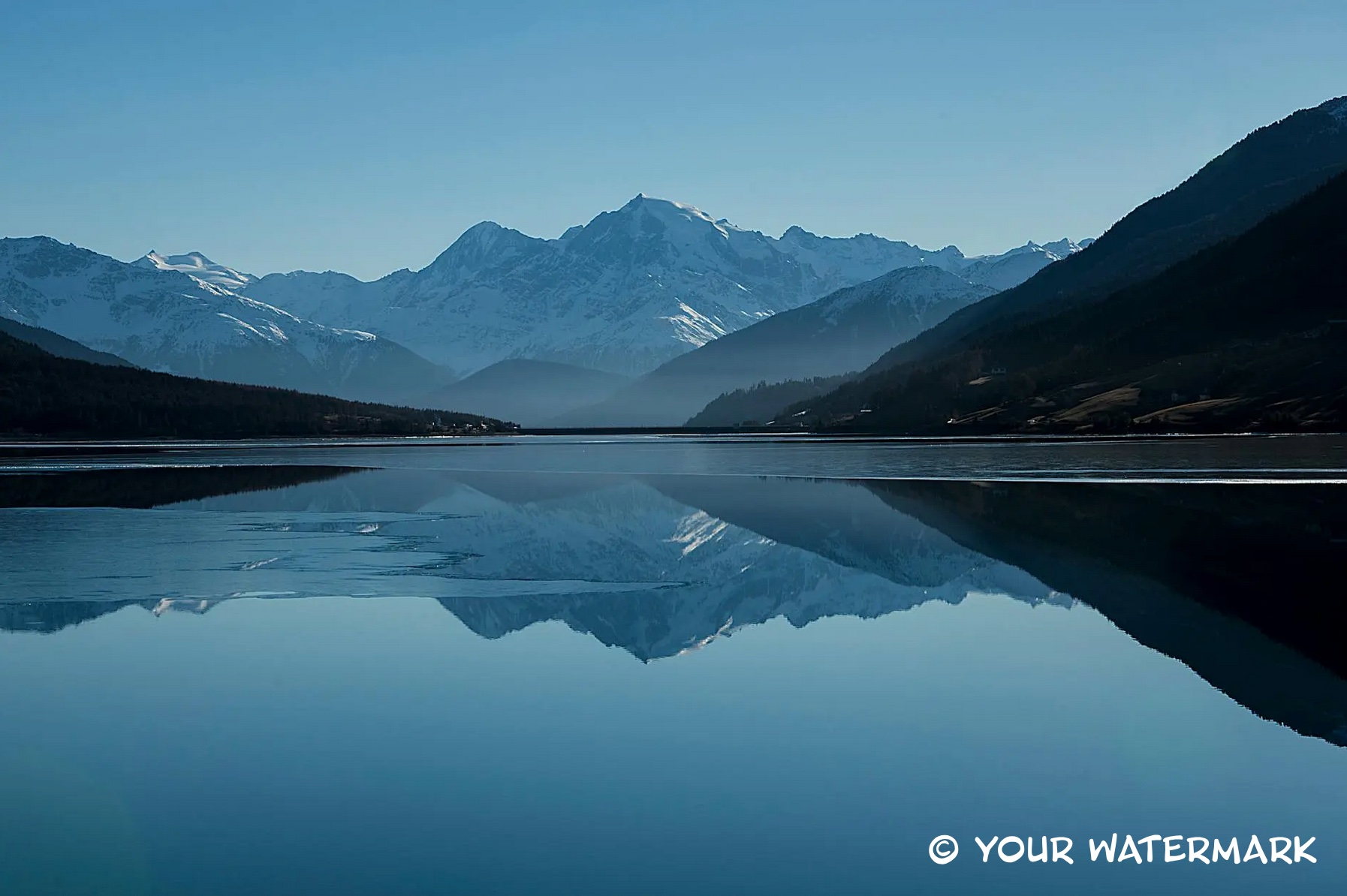
A subtle corner text watermark you can create manually or with Watermark 3.
The downside is repetition. If you edit every image by hand, you need to check size, spacing, and contrast every single time. That is manageable for a few files, but it quickly becomes slow for larger galleries.
The other limitation is consistency. A Photoshop watermark that looks balanced on a wide landscape image may appear too large on a vertical portrait, or too close to the edge on a cropped export. Manual work gives control, but it also creates more chances for inconsistency.
Option 2, Apply a Photoshop Watermark with a Brush
Some users turn a logo or signature into a Photoshop brush and stamp it onto each image. This can be faster than importing a logo file every time, especially when the watermark is simple and monochrome.
A brush watermark is most useful when:
- the mark is basically one color
- exact edge quality is not critical
- you only need a quick corner stamp
- you are working on a small number of files
But a brush also has clear limits. Brush presets are not ideal for full branding workflows because scaling can soften details, color control is more limited, and complex logos do not always stay clean. If you want a polished logo watermark with predictable opacity and placement, a placed file is usually better than a brush.
Brushes also do not solve the consistency problem by themselves. You still need to decide where the stamp goes, how big it should be, and whether it works on portrait and landscape images equally well.
Option 3, Use Photoshop Actions, and Know Their Limits
If you need a repeatable Photoshop watermark workflow, actions are the next step many people try. You record the process once, then replay it across more images.
Actions can save time when your files are very similar. For example, they work reasonably well if all images have the same dimensions, the same orientation, and the same export target. In that case, repeating a fixed watermark step can be efficient.
The trouble starts when the batch is less uniform. A recorded action is literal. If the watermark is placed 60 pixels from the bottom-right corner on a landscape image, that exact move may look wrong on a portrait image or on a file with very different dimensions. The same applies to relative scale. A logo that feels subtle on a 6000-pixel image can become too dominant on a smaller export.
This is why actions often struggle with:
- mixed landscape and portrait batches
- different pixel dimensions
- changing crop ratios
- different safe areas near the subject
- the need to use text on some files and a logo on others
You can build more advanced actions, but the workflow gets fragile fast. At that point, you are maintaining automation instead of simply watermarking images.
When a Photoshop Watermark Workflow Needs More Than Actions
Once your watermark process needs flexible size, free positioning, or easy switching between single-image work and multiple images, a dedicated tool becomes easier to manage than stacked manual steps.
Watermark is a Photoshop plugin built specifically for text and logo watermarks. It gives you controls for text, logo files, opacity, and placement inside Photoshop, and it also supports batch processing when you need to watermark many images with just a few clicks.
That matters because a practical Photoshop watermark workflow is rarely only about putting text on one file. Real jobs often include client proofs, web exports, branded previews, or social images where consistency matters as much as speed.
Walkthrough of the free version of Watermark in Photoshop.
Compared with manual methods or actions alone, a dedicated plugin is easier to repeat because the controls are designed for watermarking first, not adapted from a more general Photoshop automation feature.
Which Photoshop Watermark Method Should You Use
The best choice depends on your workflow:
- Use the fully manual method when quality control matters most and you only need one or a few images.
- Use a brush when the watermark is simple and speed matters more than precision.
- Use actions when every file is close to identical and you want a basic repeated process.
- Use a dedicated plugin when you want reliable text or logo watermarks across changing image sizes and larger batches.
For many users, the real issue is not whether Photoshop can apply a watermark. It can. The question is how much time you want to spend repeating the same setup, and how much variation your images can have before the workflow starts to break down.
If you want a faster Photoshop watermark workflow for text or logo marks, including batch processing inside Photoshop, see the details and download on the Watermark 3 Photoshop plugin page.