Pattern Watermark in Photoshop for Stronger Proof Protection
Client proofs and preview files need visible protection, but one quiet corner logo is easy to crop away in a single step. When you need the frame to read as clearly watermarked across the whole image, a repeating pattern is often the right trade.
This guide covers when full-frame repetition beats a single mark, how to build a pattern watermark manually in Photoshop, and what changes when you need the same coverage on many files without hand-duplicating layers. Watermark 3 can speed that repeat work once you know what you want the pattern to do.
When to Use a Pattern Watermark in Photoshop
A corner watermark is often enough for finished portfolio images, social posts, or light branding. It keeps the photo readable and reminds viewers who made it.
A pattern watermark is a better fit when the image is still in a proofing or preview stage. If you send contact sheets, draft exports, or client review files, a single logo in the corner can be cropped out too easily. Repeating text or logo marks across the image create more visible protection while still letting the viewer judge the composition.
This approach is common for:
- client proofs
- private preview galleries
- draft deliveries for approval
- images shared before licensing or payment
The trade-off is visibility. A repeating watermark protects more, but it also covers more. That is why spacing, opacity, and rotation matter. You want the mark to discourage casual reuse without making the image impossible to review.
Manual Pattern Watermark Setup in Photoshop
You can build a manual pattern watermark in Photoshop with normal layers. The basic idea is simple:
- Create a text layer or place a logo.
- Set the size, color, and opacity.
- Rotate the mark if you want a diagonal look.
- Duplicate it across the canvas until the frame has enough coverage.
For one image, this is manageable. You can judge the exact balance by eye and adjust spacing around the subject. That can be useful if the file is especially important or if you want a very custom arrangement.
The downside appears quickly when you repeat the process. Duplicating marks by hand takes time, and it is easy for spacing to drift. A pattern that feels balanced on a landscape file may feel too dense on a portrait image, or too large after export for the web. If you need the same look across many proofs, manual layer duplication becomes more maintenance than design.

A repeating full-frame style like this is easier to control consistently with Watermark 3.
Pattern Watermark Photoshop Workflow for Faster Repetition
If you want the same repeating coverage without rebuilding the layout by hand each time, Watermark gives you a faster workflow inside Photoshop. After install, you can work from one panel instead of managing many duplicated layers on every image.
For pattern use cases, the important controls are the ones that affect how the watermark reads across the frame:
- size, so the mark stays visible without dominating the image
- opacity, so viewers can still review the photo
- rotation, for the classic diagonal proof look
- spacing, so the repeated marks feel even across the canvas
- position and pattern options, so coverage stays predictable
Those controls matter because full-image protection is rarely about one perfect hero composition. It is about creating a repeatable watermark that still looks intentional when image dimensions change.
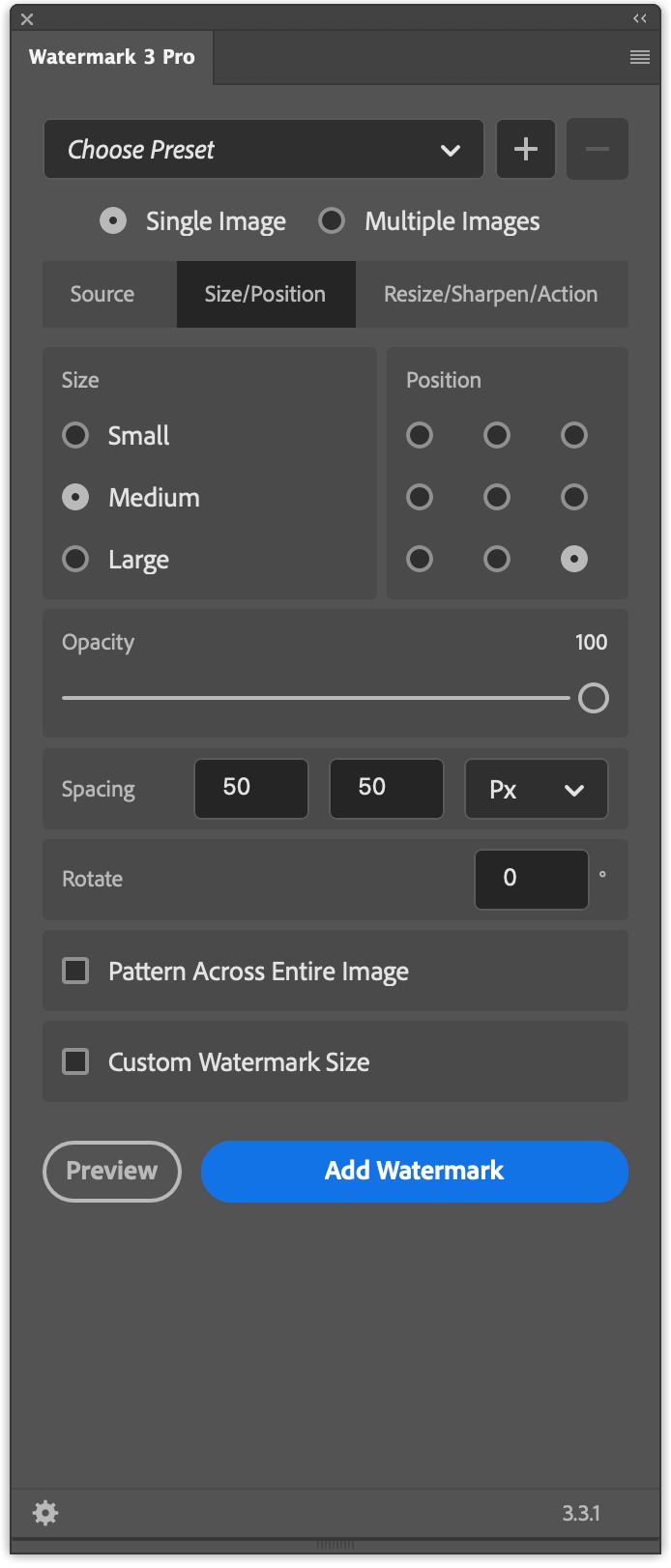
The Size and Position controls in the plugin are built for repeated watermark coverage, not just one corner mark.
Apply the Same Pattern Watermark to Many Files
This is where a repeating watermark becomes much more useful in real work. Photographers and designers often need proof sets where every image has the same protection level, even when the files include mixed orientations and slightly different crops.
With Watermark, you can keep the same pattern settings and apply them across multiple files instead of rebuilding the repeated layout on each document. That matters for proof deliveries because consistency helps the whole set feel intentional. The viewer sees one clear watermark system across the gallery, not a mix of different densities and placements.
This is also the point where a pattern-specific workflow differs from a general batch tutorial. The goal is not only speed. The goal is keeping the same repeated coverage across many previews so no single image ends up lightly protected while another is covered too aggressively.
Conclusion
A pattern watermark in Photoshop makes sense when a corner mark is too easy to remove and you need stronger visible protection for proofs, previews, or draft deliveries. You can build that look manually with duplicated layers, but the process becomes slow when you need even spacing, readable opacity, and the same coverage across many files.
If you want a faster way to create and repeat that kind of protection inside Photoshop, see the details and download on the Watermark 3 Photoshop plugin page.