How to Create a Watermark in Photoshop in Minutes
You do not need a long setup to create a watermark in Photoshop on a single image. The fastest manual path is usually a text layer in a corner: type, scale, drop opacity, export. If you already have a logo file ready, Place Embedded replaces the type steps and the rest of the flow stays the same. Watermark 3 is there when you want the same settings packaged for the next file or a whole folder, but you can get a usable mark on one photo first with built-in tools alone.
Create a Text Watermark in Photoshop (Fastest Path)
- Open the photo. Press T for the Horizontal Type tool, click near a corner, and type your line (©, studio name, or short URL).
- Set size and color in the options bar. Pick a weight that still reads when you zoom out to thumbnail scale.
- Press Ctrl/Cmd+T for Free Transform, scale, and nudge into the corner. Hold Shift while scaling if you want proportions locked.
- Lower Opacity on the type layer until the line is visible but quiet. Start around 40% and adjust for the background.
- Use File → Save a Copy or Export for a flattened share file. Keep the layered PSD if you need to edit later.
That is the whole create watermark in Photoshop loop for text without extra panels.
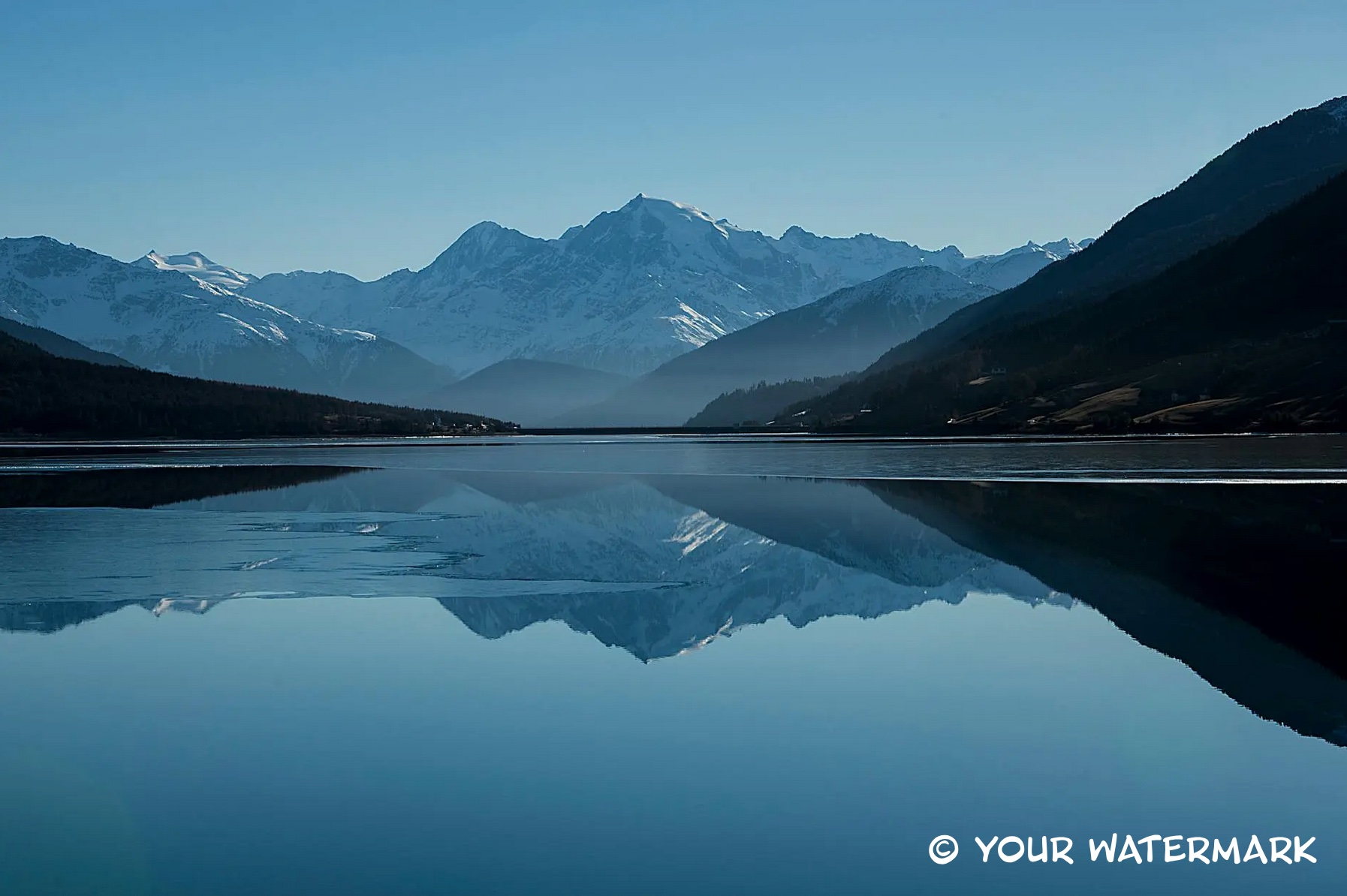
Corner text you can drop in quickly, then polish later in Watermark 3 if this becomes routine.
Create a Logo Watermark in Photoshop When Text Is Not Enough
- Open the photo. Choose File → Place Embedded and select a PNG with transparency or your vector logo.
- Resize with Free Transform, commit, then lower layer opacity to match the scene (often a bit lower than text because shapes read stronger).
- Export the same way as above, and keep an unflattened PSD when you might swap crops or sizes.
If you need more detail on file prep or placement habits, use the logo watermark guide.
One Minute for QA Before You Share
Zoom out until the frame looks like a feed thumbnail, or use View → Fit on Screen and step back. If the mark vanishes, bump size or opacity before you post.
Glance at the opposite corner for accidental clutter. A watermark should not compete with the subject.
When the Same Mark Must Hit Many Files
Minutes add up when the folder is large. A plugin workflow saves the source choice (text or logo), size, corner, and opacity once, then applies it across a batch so you are not repeating the same five clicks per image.
Watermark on Windows and Mac handles that inside Photoshop.
Walkthrough of the free version of Watermark in Photoshop: text on one image, then batch logo.
Conclusion
You can create a watermark in Photoshop in minutes by treating it as a single layer workflow: type or place, transform, opacity, export. Start with text for speed, switch to a placed logo when branding matters more than a typed line, then move to a repeatable tool when volume grows.
For downloads, batch processing, and the full feature set, see the Watermark 3 Photoshop plugin page.